Case Calendar
A five-week case calendar on my Windows desktop. It updates when deadlines change.
On the desktop
What it is
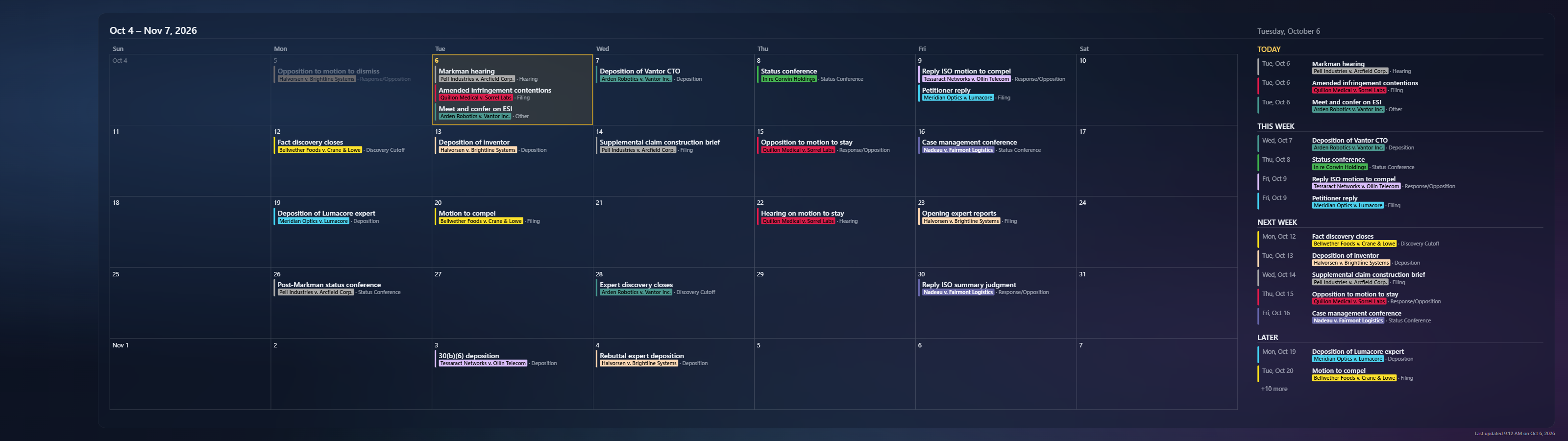
Case Calendar sets my Windows wallpaper to a five-week calendar, starting with the current week, next to a list of what’s due today, this week, next week and later. I see my deadlines whenever I look at the desktop, without opening anything. Win+D brings it up.
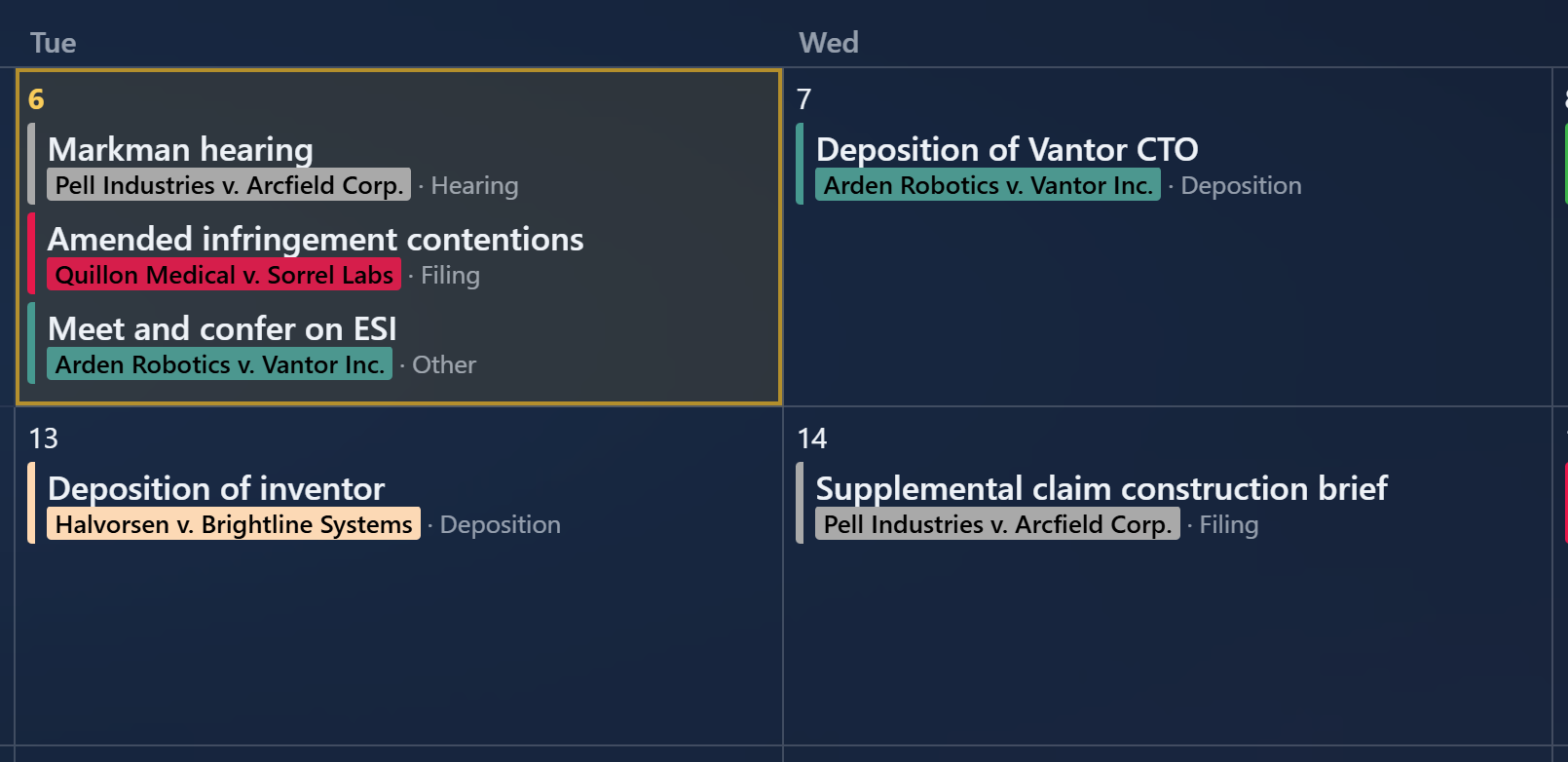
Each event shows its title, its case and the type of deadline. Every case has its own color, today is outlined, and past days fade. There are light, dark and glass themes, and a blank strip on the left keeps desktop icons off the calendar.
Keeping it current
The app has a page laid out at 7680×2160 just for the wallpaper. A worker in the server redraws it:
- After a change. It waits for 10 seconds without edits, so a burst of changes makes one new wallpaper instead of ten.
- Every 30 minutes. The calendar moves forward at midnight on its own.
Each redraw takes a screenshot of that page with headless Chromium and hands the PNG to a PowerShell script, which sets it on every monitor through Windows’ IDesktopWallpaper interface.
The awkward part is Windows itself. A Windows service runs in Session 0, which has no visible desktop, so a service that changes the wallpaper changes one nobody sees. The app runs as the signed-in user instead, either as a service under my account or from Task Scheduler at logon.
Getting deadlines in
The rest is a small web app, Hono and React over SQLite, that runs only on my machine, with no cloud account and no telemetry. I add deadlines with Ctrl+K in plain English. For a scheduling order, I paste it in or email it to the app, and a language model (OpenAI or Claude, whichever is configured) pulls out every date for me to check before anything is saved.
It also sends me a 7:00 AM email with the next two weeks of deadlines. From my phone or laptop I reach it over Tailscale, so it’s never on the public internet.
Install on Windows
Download CaseCalendarSetup-<version>.exe from the latest GitHub release and run it on Windows 10 or 11. The installer does not require administrator rights, Node.js, or Git.
The installer is not code-signed, so Windows may show an unknown-publisher warning. The README explains the warning and how to compare the installer’s SHA-256 checksum with the release notes.
When the browser opens to Settings > Setup, pick your time zone and turn on the desktop wallpaper. Add an AI provider key or email account if you want those optional features. The app runs from the system tray and starts when you sign in. Deadlines and settings are stored in %LOCALAPPDATA%\CaseCalendar and kept across updates and uninstall.
A short walkthrough
- Add a case and its deadlines in the web app. Ctrl+K opens quick-add; with an AI key configured, it can turn a plain-English entry into a form for you to review.
- Press Win+D to see the calendar on your desktop. Each case has its own color, with a separate list of approaching deadlines.
- Change a deadline in the app. After about ten seconds without further edits, the wallpaper redraws to show the change.
The app stores its data locally. Optional AI and email features send data to the providers you configure. Remote access requires a private connection such as Tailscale; it is not a hosted service or a shared team docket.
For source installation and remote access, see the Case Calendar setup documentation.